Open any Dolibarr record in a pop-up, without leaving the page you are on.
What it does
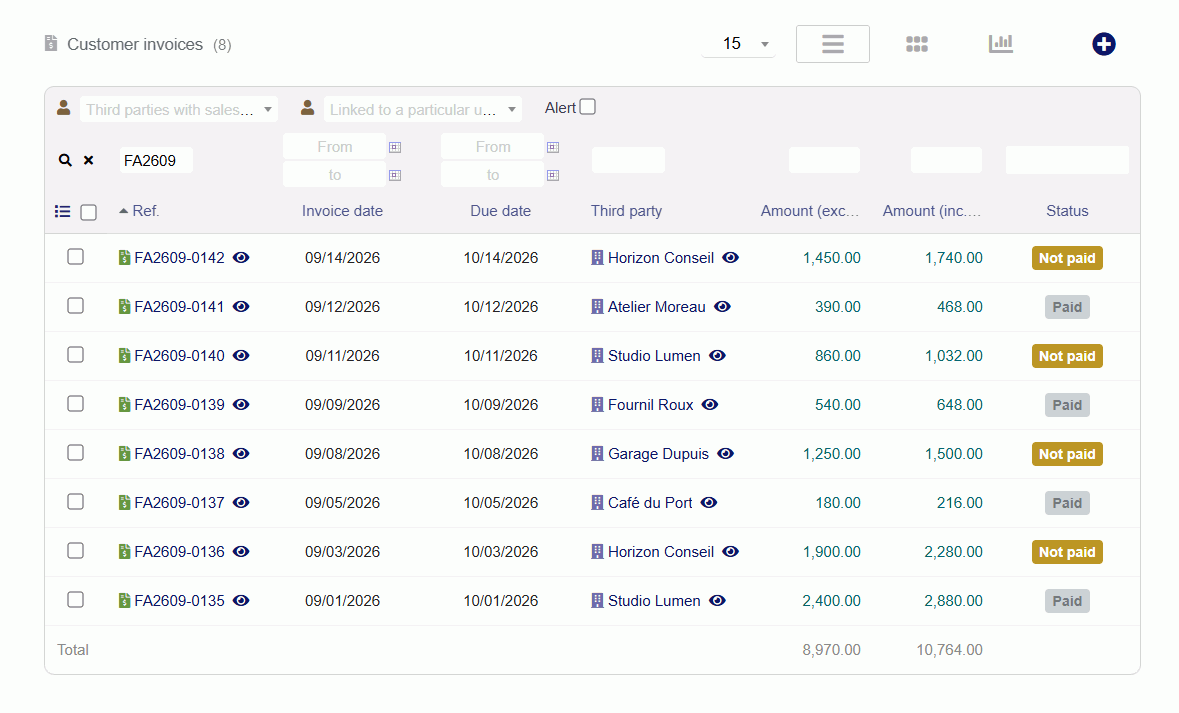
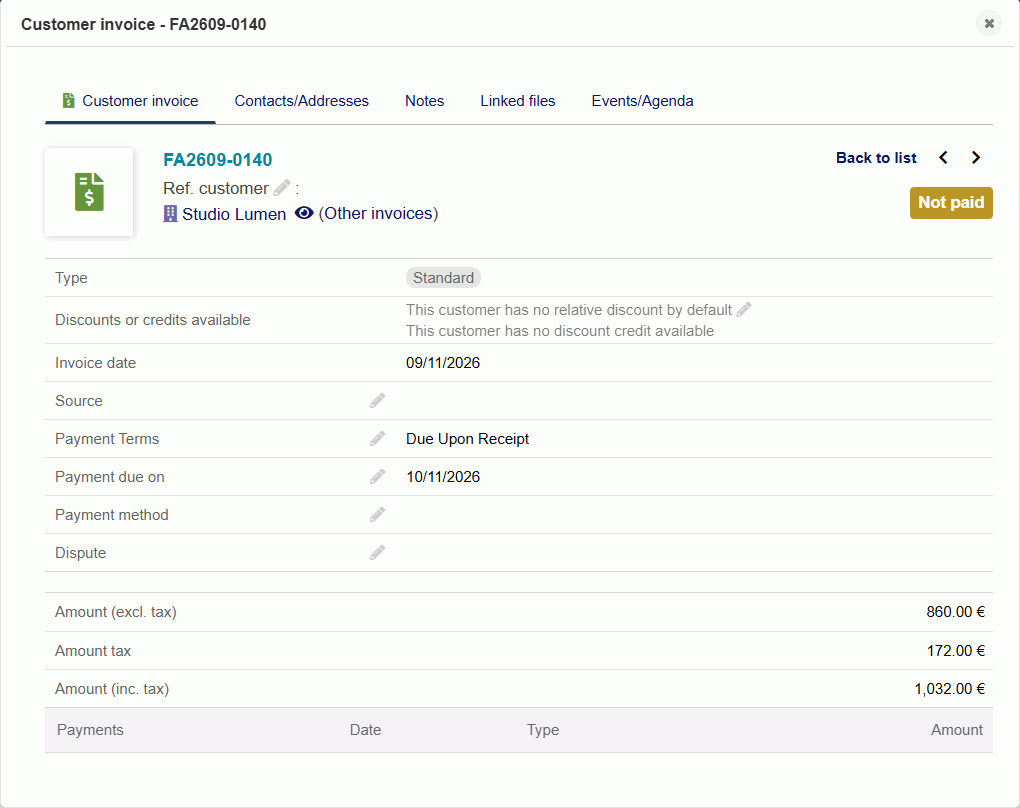
An eye appears next to every link to a record: in lists, dashboard widgets, record cards, linked records and search results. One click opens the record in a pop-up, right on top of your page. Close it and you are exactly where you were — same list, same filters, same place.
An eye next to each record, in every list.
Using it
Out of the box, the eye is switched on for every supported record and shows everywhere. Open a list, your dashboard or a record card: the eye is there, next to each record. Click it to open the record in a pop-up, and close the pop-up to get back to what you were doing.
The record opens right over your page.
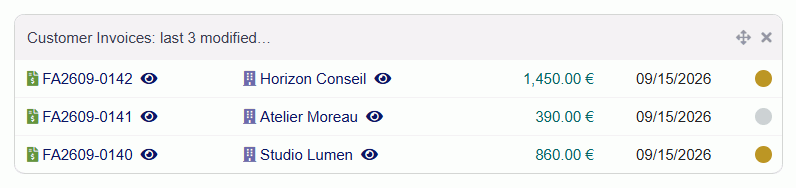
The eye also appears on your dashboard widgets and on record cards, next to the customer of an invoice for example:
In a dashboard widget.On a record card.
Your usual habits still work: Ctrl-click or a middle click on the eye opens the record in a new tab.
If you see no eye next to a record, check two things in the settings: that its record type is switched on, and that the Dolibarr module it belongs to is enabled.
Configuration
Open Home → Setup → Modules/Applications, find Quick Object View and click its settings icon. You can:
Show the eye everywhere (on by default): the eye appears next to every link to a record. Switch it off to keep the eye on each record’s own list only.
Choose the record types: one switch per type, grouped by area, with Enable all and Disable all buttons. A type whose Dolibarr module is disabled is shown as such, without a switch.
The supported records, by area:
Customers and sales: third parties, contacts, commercial proposals, sales orders, shipments, contracts, interventions and intervention templates
Billing and payments: customer invoices, invoice templates, customer payments, direct debit and credit transfer orders
Purchasing: vendor price requests, purchase orders, receptions, vendor invoices and their templates, vendor payments
Products and stock: products and services, warehouses, lots and serial numbers, stock transfers
Manufacturing: bills of materials, manufacturing orders, workstations
Projects, agenda and support: projects, tasks, tickets, agenda events, resources, knowledge base articles
Finance: salaries, social and tax contributions, miscellaneous payments, loans, fixed assets
Human resources: users and user groups, expense reports, leave requests, job openings, job applications, jobs, employee positions, skills, evaluations
Members, events and communication: members, donations, emailings, partnerships, conferences and booths
Good to know
Nothing to redo after a Dolibarr upgrade. Dolibarr itself is left untouched, and your lists look exactly as before.
Your choices are kept, even when the module is disabled and enabled again. When you update from a version older than 3.3.0, every record type and Show the eye everywhere are switched on: have a look at the settings after the update.
Long names: in columns that shorten long names, the name is shortened and the eye stays visible.
Where the eye does not appear: in CSV exports, inside tooltips, next to a name shown without a link (a user you are not allowed to open, for example), and in e-mails sent by scheduled tasks.
Tasks and tickets need Dolibarr 19 and 20 or later respectively; the settings page says so on older versions.
Not yet available: stock movements, bank accounts and bank entries, inventories, member subscriptions and member types, VAT, cheque deposits and social contribution payments. Dolibarr does not yet let modules add anything next to these links; an improvement has been proposed to the Dolibarr project.
Requirements
Dolibarr 18 to 25 (25 checked on its development version). On an older version, Dolibarr refuses to enable the module and tells you why.
PHP 7.1 or later
JavaScript enabled in the browser (otherwise the eye simply opens the record as a normal page)
Install it
In Dolibarr, go to Home → Setup → Modules/Applications → Deploy/install external module and upload the zip you downloaded from your account. Then enable Quick Object View in the module list — it appears in the Pichisoft (Pichinov) family.
If your host has locked that screen (an install.lock file, or production mode), unzip the archive into htdocs/custom/ over FTP instead. The folder must be named quicklistobjectview.
Activate your licence
Open the module configuration, then the Licence tab, paste the key you received by email and click Activate. That is all: the domain and the installation are recorded at that moment.
The module works fully without a key. What a licence brings is the signed updates and the support. When the subscription ends, the module keeps working exactly as before — only new versions stop being delivered.
Update it
The Licence tab tells you when a new version is available and installs it in one click, after backing up the current one. The decision is always yours: nothing is ever installed automatically.
Get help
The About tab has a Contact support button. It opens a form that carries the technical context of your installation — versions, environment, licence state, and no business data. You can read exactly what is sent before sending it.